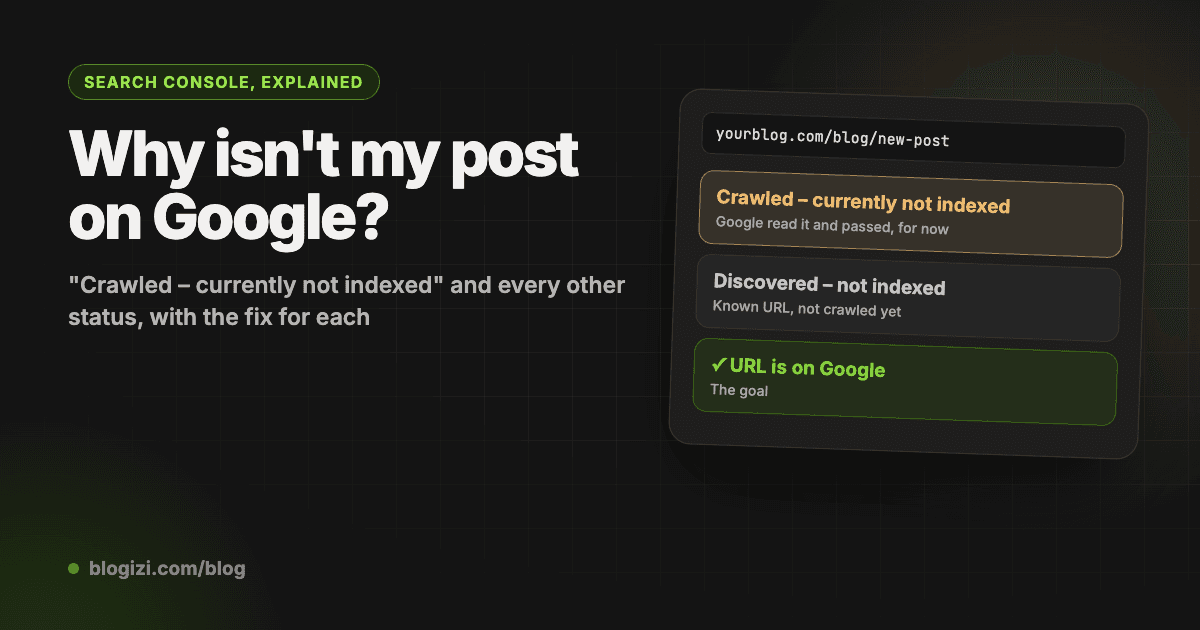
If a blog post isn't on Google, Search Console already knows why. Open the URL Inspection tool, paste the post's URL, and it tells you whether Google has seen the page, crawled it, and decided to keep it. Most new posts that "aren't showing up" fall into one of two statuses: Discovered – currently not indexed (Google knows the URL but hasn't fetched it yet) or Crawled – currently not indexed (Google fetched it and chose not to keep it, for now).
This guide explains each status you'll see for a blog post, what usually causes it, and what to do. It's written for small blogs, where the fixes are different from the advice aimed at sites with millions of pages.
First, check the post's actual status
Don't guess from a site: search. It's unreliable for single URLs. Use Search Console:
- Open Google Search Console and pick your property.
- Paste the post's full URL into the search bar at the top. That's the URL Inspection tool.
- Read the first line. "URL is on Google" means indexed. "URL is not on Google" comes with a reason under Page indexing.
- Note Last crawl and Google-selected canonical on the same screen. You'll need both below.
For a site-wide view, Indexing → Pages groups every known URL by reason. It's slower to update than URL Inspection, so check single posts with the inspection tool.
Discovered – currently not indexed
What it means: Google found the URL, usually in your sitemap or through a link, but hasn't crawled it yet.
Usual causes on a blog:
- The post is new. A few days in this state is normal.
- Nothing links to it except the sitemap. Google treats an orphan page as low priority.
- The site is new or rarely updated, so Google crawls it less often.
What to do:
- Wait about a week before changing anything.
- Link to the post from two or three of your posts that already get search traffic, and from your blog's home page or a category page.
- Make sure it's in your sitemap and the sitemap is submitted under Indexing → Sitemaps.
- Use Request indexing in the URL Inspection tool once. Clicking it again doesn't speed things up.
Crawled – currently not indexed
What it means: Google fetched the page, read it, and decided not to add it to the index for now. It's not an error, it's a judgment call, and Google can reverse it later on its own.
Usual causes on a blog:
- The post is thin or overlaps another one. If it covers the same ground as an older post on your site, or as many other pages on the web, Google has little reason to keep another copy.
- It's weakly connected. One link from a tag page tells Google the post isn't important to you either.
- The site is young. New sites get indexed more selectively until Google trusts them.
What to do:
- Make the page clearly different. Answer one specific question better than what's already out there: real examples, your own data, steps that work. Put the answer near the top.
- Merge overlapping posts. If two of your posts target the same topic, combine them into one stronger post and redirect the weaker URL.
- Add internal links from relevant posts that get traffic, with anchor text that says what the post is about.
- Then request indexing once, after the changes, not before.
Expect weeks, not days. If a post stays in this state for months after real improvements, it's usually a sign the topic doesn't need another page, and merging it is the better move.
Duplicate statuses and canonicals
You'll see these when Google thinks the post is a copy of another URL:
- Duplicate without user-selected canonical: two URLs show the same content and neither says which one is the original. Common causes: the same post reachable with and without a trailing slash, with tracking parameters, or on both
wwwand the bare domain. Add a canonical tag pointing at the main URL. - Duplicate, Google chose different canonical than user: your canonical says one URL, Google picked another. Check Google-selected canonical in URL Inspection. Often it's the HTTP vs HTTPS or
wwwmismatch, or a cross-posted copy on Medium or dev.to that Google decided is the original. When you cross-post, set the canonical on the copy to point back to your blog. - Alternate page with proper canonical tag: this one is fine. It's the copy, and the canonical points to the main version, which is indexed instead.
Blocked on purpose (or by accident)
- Excluded by 'noindex' tag: the page tells Google not to index it. Check the post's settings, your SEO plugin or framework defaults, and staging settings that leaked to production.
- Blocked by robots.txt: Google isn't allowed to crawl the URL. Check
yourdomain.com/robots.txtfor aDisallowrule that matches the post's path. Note that a page blocked by robots.txt can still be indexed without its content if other sites link to it, so usenoindex(and allow crawling) when you want a page kept out. - Page with redirect: the URL redirects somewhere else. Make sure your sitemap and internal links use the final URL.
Errors
- Not found (404): the URL doesn't exist anymore. If the post moved, redirect the old URL to the new one.
- Soft 404: the page loads but looks empty or like an error page to Google, often a post with very little text or one that renders its content only after JavaScript runs.
- Server error (5xx): the page failed when Google tried to fetch it. One-off errors fix themselves on the next crawl. Repeated ones need a look at your hosting.
A routine that keeps posts from slipping through
Indexing problems are easy to miss because an unindexed post gets zero impressions: it never shows up in your performance reports. A simple habit catches them:
- When you publish, link the new post from two or three related posts and check it's in the sitemap.
- After a week, inspect the URL. Discovered is still fine. Crawled – currently not indexed means it's time to improve the post.
- Every month, check Indexing → Pages for posts that dropped out of the index.
On a blog with a handful of posts that's quick. With dozens, it's the step people skip.
How Blogizi handles this
If your blog runs on Blogizi, the routine above runs for you. Blogizi checks every post you publish with Google's URL Inspection API, daily until it's indexed and weekly after that, and shows the result in the project's Search → Indexing tab: what Google says about each post, when it last crawled it, how long indexing took, and whether Google read your sitemap. Posts that aren't on Google come with a plain-language fix, and a link that opens the post in Search Console's own inspection tool, because requesting indexing is something only you can do there.
Your AI agent can read the same list over MCP with get_search_performance and include: ["indexing"], so a weekly check like "Which of my recent posts aren't indexed, and what should I change?" works from Claude, Codex or Cursor. Search Console features are on the Pro and Agency plans; see the Search Console docs.
FAQ
How long does it take Google to index a new blog post? Anywhere from a few hours to a few weeks. Established sites that publish often tend to be fast; new sites with few links are slower. If a post is still Discovered – currently not indexed after two weeks, add internal links to it.
Does "Request indexing" guarantee the post gets indexed? No. It asks Google to crawl the URL sooner. Google still decides whether to keep it, which is why a post can go straight to Crawled – currently not indexed after a request.
Is "Crawled – currently not indexed" a penalty? No. It's Google deciding the page isn't worth keeping right now. Improving the content and its internal links is the fix. Many pages move into the index later without any action.
Can I use the Indexing API to force a blog post in? Google's Indexing API is officially limited to job posting and livestream pages. Using it for blog posts isn't supported.
Why does site: show my post but Search Console says it's not indexed (or the other way round)? site: results are approximate and can lag. Trust the URL Inspection tool for a single URL.